Showing posts with label VB6 Sample Program. Show all posts

Sunday, March 28, 2010

A Tips to Create a Function to Convert Numbers into Roman Numerals


To create a number of letters we often use roman numerals to indicate the month of making the letter.For example, the letter number is '001 / Int/III/2010' where the symbol 'III' indicates that the letter was made in March 2010.

For this we need a function that can convert an integer number from 1 to 12 into roman numerals. In the Visual Basic programming, we can easily create such a function. Well, here we'll show an example program to create such functions, as well as examples of how to use it.

  • First open your VB program and select standard exe form


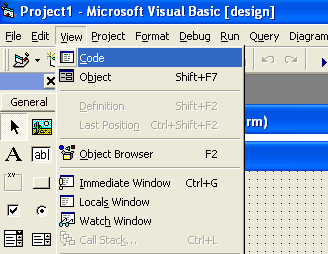
  • Click the View menu


  • Click the Code menu


  • Write the Visual Basic (VB) program code below
    Function IToR(i As Integer) As String Dim s As String s = "I II III IV V VI VII VIIIIX X XI XII " IToR = Mid(s, (i - 1) * 4 + 1, 4) End Function


  • Click the View menu


  • Click the Object menu


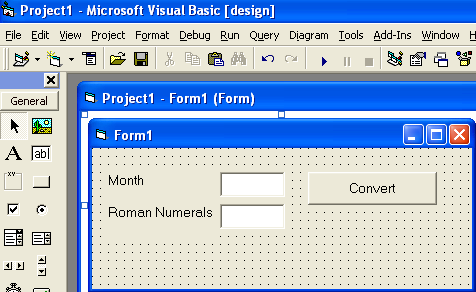
  • Put two label controls, two textboxes and a CommandButton to the form


  • Change the Caption of first label into 'Month'


  • Change the Caption of second label into 'Roman Numeral'


  • Change the name of the first textbox into 'txtMonth'


  • Change the name of the second textbox into 'txtRomNum'


  • Remove texts on the first and second textboxes


  • Change the name of the CommandButton into 'cmdConvert'


  • Change the CommandButton caption into 'Convert'
    So your Screen design will look like the image below:


  • Double click CommandButton 'Convert'


  • Write below Visual Basic (VB) program coding
    Private Sub cmdConvert_Click() txtRomNum.Text = IToR(Val(txtMonth.Text)) End Sub

    Okay, you have completed the program
    Now it's time to test


    • Run your program
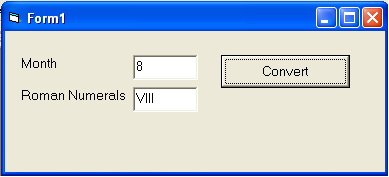
  • Type a number such as 8 in the first textbox


  • Click CommandButton 'Convert'
    Consider the results


  • Tuesday, August 18, 2009

    Select Case End Select - VB6 Sample Programme Part 2

    This posting is continuation of previous posting "Select Case End Select - VB6 Sample Programme Part 1". In the previous posting you have designed a programme interface like below image, and you have saved it.
    Select Case End Select VB6 Sample Program

    Now, let's writing the programme coding for the above programme design.

  • Double click cmdCalBonus button to create sub cmdCalBonus_Click()
  • Write down below programme coding in the cmdCalBonus_Click() area

    Select Case Val(txtSalQty.Text) Case 1 To 2 txtBonus.Text = "2%" Case 3, 4 txtBonus.Text = "3%" Case 5 To 6 txtBonus.Text = "4.5%" Case 7 To 8 txtBonus.Text = "6.5%" Case 9 txtBonus.Text = "10%" Case Else txtBonus.Text = "15%" End Select txtBonusAmt.Text = Val(txtSalQty.Text) * Val(txtPriceUnit.Text) * _ Val(Left(txtBonus.Text, Len(txtBonus.Text) _ - 1)) / 100

    At the end, your programme will look like below listing:

    Private Sub cmdCalBonus_Click() Select Case Val(txtSalQty.Text) Case 1 To 2 txtBonus.Text = "2%" Case 3, 4 txtBonus.Text = "3%" Case 5 To 6 txtBonus.Text = "4.5%" Case 7 To 8 txtBonus.Text = "6.5%" Case 9 txtBonus.Text = "10%" Case Else txtBonus.Text = "15%" End Select txtBonusAmt.Text = Val(txtSalQty.Text) * Val(txtPriceUnit.Text) * _ Val(Left(txtBonus.Text, Len(txtBonus.Text) _ - 1)) / 100 End Sub

    Let's test your programme to check whether it's correct or not.
  • Click Start button on your VB toolbar
  • Type a number (for example 5) on your textbox with label Your Sales Quantity
  • Type a number (for example 100) on your textbox with label Price Unit (USD)
  • And finally click Calculate Bonus button
  • Notice what happen on your program, what's the result?

    According to the Bonus Table if Sales Quantity = 5, so the Bonus Percentage should equal to 4.5%. So the Bonus Amount = 5 X 100 X 4.5 / 100. And the result is 22.5. So your program should like below screenshot.
    Select Case End Select VB6 Sample Program

    Now I'll explain how the programme works.
  • When you type 5 in the Your Purchase Quantity, then type 100 in the Price Unit (USD), and click Calculate Bonus button, so the cmdCalBonus_Click() executed.
  • Then this statement "Val(txtSalQty.Text)" will convert text "5" into number 5
  • Then in Select Case.. defined that txtBonus.Text is "4.5%" according to the Sales Quantity => 5
  • Then program executes below statement:
    txtBonusAmt.Text = Val(txtSalQty.Text) * Val(txtPriceUnit.Text) * _
    Val(Left(txtBonus.Text, Len(txtBonus.Text) _
    - 1)) / 100
    Mybe you think that this is a complex statement. But in fact it's just a simple statement.
    Val(txtSalQty.Text) convert text "5" into number 5
    Val(txtPriceUnit.Text) convert text "100" into number 100


    Because txtBonus.Text = "4.5%" (this is a text) so:
    Len(txtBonus.Text) will return 4, and Len(txtBonus.Text) - 1 will return 3
    Left(txtBonus.Text, Len(txtBonus.Text) - 1) equals to Left("4.5%",4-1) will return "4.5"
    Then Val(Left(txtBonus.Text, Len(txtBonus.Text) - 1)) equal to Val("4.5") will return number 4.5


    So the above formula will equal to:
    txtBonusAmt.Text = Val("5")*Val("100")*Val(Left("4.5%",Len("4.5%")-1))/100
    <=> txtBonusAmt.Text = 5 * 100 * 4.5 / 100
    <=> txtBonusAmt.Text = 22.5


  • Select Case End Select - VB6 Sample Programme Part 1

    VB Select Case Sample Program
    In this posting I'll write a sample of simple VB6 programme that using Select Case..End Select control structure. However this programme also using several VB6 functions like Val() (to convert text into number so can be calculated), Len() (to get the length of a text) and Left() (to pick up a part from the left side of a text).

    The scenario of the programme is as the following:
  • This programme is Bonus Calculation (Sales System).
  • Here it is the bonus percentage table:
    Sales Quantity = 1 - 2 -> Bonus = 2%
    Sales Quantity = 3 - 4 -> Bonus = 3%
    Sales Quantity = 5 - 6 -> Bonus = 4.5%
    Sales Quantity = 7 - 8 -> Bonus = 6.5%
    Sales Quantity = 9     -> Bonus = 10%
    Sales Quantity = 10 or more -> Bonus = 15%
  • Bonus Amount = Sales Quantity X Price Unit X Bonus

    The screen design of the programme is like below screenshot.
    Secect Case End Select VB6 Sample Program

    Now, let's design the programme first (create screen interface).
  • Open your Visual Basic 6 software
  • Select a standard type project
  • Create 5 Labels
  • Create 4 Textboxes
  • Create a Command button
  • Arrange the controls on your Form like the picture above
  • Click first Label (Label1)
  • Rename the caption of Label1 into Bonus calculation
  • Change the font size into 24
  • Change the caption of Label2, Label3, Label4 and Label5 into Your Sales Quantity, Price Unit (USD), Percentage of Bonus, and Amount of Bonus (USD)

  • Click first Textbox (Text1), clear it's Text, and rename into txtSalQty
  • Click second Textbox (Text2), clear it's Text, and rename into txtPriceUnit
  • Click third Textbox (Text3), clear it's Text, and rename into txtBonus
  • Click fourth Textbox (Text4), clear it's Text, and rename into txtBonusAmt
  • Click Command1 button, change the caption into Calculate Bonus, and rename into cmdCalBonus

  • Click anywhere in Form1 area, and rename into frmCalBonus (look at properties window)
  • Click Project1 file (in Project explorer window)
  • Click cell next to (Name) in Properties Window, and change the Name into prjCalBonus

    Look at image above, your screen design should like that.
    Ok, now the time to save your work (your programme) in order you can edit it next time (this programme will be used in the next posting). Here it is tips to save your VB6 programme:
  • Click File menu on your menu bar
  • Click Save Project As... menu
  • On Save File As window, type frmCalBonus on the cell with label File name:
  • Select the folder you want to save in, then click Save button
  • Then on Save Project As window, Type prjBonus on the cell with label File name:
  • Then click Save button

    Note: The extention .vbp and .frm will automatically given by the system.
    Ok, now your programme has been saved. You have 2 files in your project: prjBonus.vbp and frmCalBonus.frm and you can close your VB programme. I'll continue to write the programme coding in the next posting.


  • Sunday, August 16, 2009

    Temperature Conversion with Multiple Base in VB6 Programming

    Temeprature Conversion with Multiple Base in VB6 Programming


    How to Convert Degree from Kelvin to Another in VB6 Programming?

    How to Convert Degree from Kelvin to Another?


    How to Convert Degree from Rheamur to Another in VB6 Programming?

    In the previous posting you have learnt a simple VB programming tips "How to convert degree from Fahrenheit into another one in VB6 programming". Now we will learn another simple VB programming tips "How to convert degree / temperature from Rheamur into another one", so the base degree is Rheamur, and will be converted into Celcius, Fahrenheit and Kelvin. We have three previous conversion formulas (Celcius base) as follow:
    Fahrenheit = ( Celcius X 1.8 ) + 32
    Rheamur = Celcius X 0.8
    Kelvin = Celcius + 273.15


    From these formulas, now we can generate new three other formulas (Rheamur base) as the following:
    Celcius = Rheamur / 0.8
    Fahrenheit = ( ( Rheamur / 0.8 ) X 1.8 ) + 32
    Kelvin = ( Rheamur / 0.8 ) + 273.15


    Now, let's implement above formulas into a simple VB6 programming. Let's go on to the following simple VB programming tips!

  • Create a VB project for example Project1
  • Create a VB standard form for example Form1
  • Create 5 labels for example Label1, Label2, Label3, Label4, Label5
  • Go to Label1 properties by clicking Label1 object, and then change Label1 Caption into "Degree Conversion", and change Font Size into 14.
  • Go to Label2 properties, and then change Label2 Caption into "Rheamur"
  • Go to Label3 properties, and then change Label3 Caption into "Celcius"
  • Go to Label4 properties, and then change Label4 Caption into "Fahrenheit"
  • Go to Label5 properties, and then change Label5 Caption into "Kelvin"
  • Create 4 text boxes for example Text1, Text2, Text3, Text4
  • Create a command button for example Command1
  • Go to Command1 properties, and change Command1 caption into "Convert"

    So your screen design should look like below image:
    Screen Design Simple VB6 Program - Degree Conversion from Rheamur

  • Double click anywhere in the Form1 area to create a Sub Form_Load()
  • Write down below program coding in the Sub Form_Load() area
    'to clear the content of text boxes
    Text1.Text = ""
    Text2.Text = ""
    Text3.Text = ""
    Text4.Text = ""

  • Double click the command button with caption "Convert" to create a Sub Command1_Click()
  • Write down below program coding in the Sub Command1_Click() area
    'conversion process
    'Text1 represents Rheamur
    'Text2 represents Celcius
    'Text3 represents Fahrenheit
    'Text4 represents Kelvin
    Text2.Text = Val(Text1.Text) / 0.8
    Text3.Text = ((Val(Text1.Text) / 0.8) * 1.8) + 32
    Text4.Text = (Val(Text1.Text) / 0.8) + 273.15

    So your program will look like below listing:
    Private Sub Command1_Click()
    'conversion process
    'Text1 represents Rheamur
    'Text2 represents Celcius
    'Text3 represents Fahrenheit
    'Text4 represents Kelvin
    Text2.Text = Val(Text1.Text) / 0.8
    Text3.Text = ((Val(Text1.Text) / 0.8) * 1.8) + 32
    Text4.Text = (Val(Text1.Text) / 0.8) + 273.15
    End Sub

    Private Sub Form_Load()
    'to clear the content of text boxes
    Text1.Text = ""
    Text2.Text = ""
    Text3.Text = ""
    Text4.Text = ""
    End Sub

    Ok, your program's finish. Test your program by clicking Start button on your VB toolbar to know whether your program working properly or not.
  • Type a number in Text1 for example 80 (in the text box with label "Rheamur")
  • Click command button with label "Convert"
    If the results are 100 in Text2 (Celcius), 212 in Text3 (Fahrenheit), and 373.15 in Text4 (Kelvin), it means that your program is correct and working properly.
    Look at below image for your illustration.
    Simple Vb Program Degree Conversion From Rheamur

    It is very easy and very simple isn't it? Would you like to try it? Ok, in the next posting I'll write another simple tips with VB6 programming. See you in the next posting!


  • How to Convert Degree from Fahrenheit to Another in VB6 Programming?

    In the previous posting I've told you a simple VB programming tips "How to convert degree from Celcius into another one". In this posting I'll tell you a tips "How to convert degree from Fahrenheit into another one", so the base degree is Fahrenheit. It will be converted into Celcius, Rheamur and Kelvin. As we know that we have three previous conversion formulas (Celcius base):
    Fahrenheit = ( Celcius X 1.8 ) + 32
    Rheamur = Celcius X 0.8
    Kelvin = Celcius + 273.15


    From above formulas, we are able to generate three other formulas (Fahrenheit base) as below:
    Celcius = ( Fahrenheit - 32 ) / 1.8
    Rheamur = ( ( Fahrenheit - 32 ) / 1.8 ) X 0.8
    Kelvin = ( ( Fahrenheit - 32 ) / 1.8 ) + 273.15


    Now let's implement these formulas in VB6 simple programming. Please follow below steps for your tips!

  • Create a VB project for example Project1
  • Create a VB standard form for example Form1
  • Create 5 labels for example Label1, Label2, Label3, Label4, Label5
  • Go to Label1 properties by clicking Label1 object, and then change Label1 Caption into "Degree Conversion", and change Font Size into 14.
  • Go to Label2 properties, and then change Label2 Caption into "Fahrenheit"
  • Go to Label3 properties, and then change Label3 Caption into "Celcius"
  • Go to Label4 properties, and then change Label4 Caption into "Rheamur"
  • Go to Label5 properties, and then change Label5 Caption into "Kelvin"
  • Create 4 text boxes for example Text1, Text2, Text3, Text4
  • Create a command button for example Command1
  • Go to Command1 properties, and change Command1 caption into "Convert"

    So your design will look like below image (just a simple Screen Design):


    Double click any where in Form1 area to create a Sub Form_Load()
    Write down below program coding in the Sub Form_Load() area

    'to clear the content of text boxes Text1.Text = "" Text2.Text = "" Text3.Text = "" Text4.Text = ""


    Double click Command1 command button (with caption "Convert") to create a Sub Command1_Click()
    Write down below program coding in the Sub Command1_Click() area

    'conversion process 'Text1 represents Fahrenheit 'Text2 represents Celcius 'Text3 represents Rheamur 'Text4 represents Kelvin Text2.Text = (Val(Text1.Text) - 32) / 1.8 Text3.Text = ((Val(Text1.Text) - 32) / 1.8) * 0.8 Text4.Text = ((Val(Text1.Text) - 32) / 1.8) + 273.15


    So your program should look like below listing:

    Private Sub Command1_Click() 'conversion process 'Text1 represents Fahrenheit 'Text2 represents Celcius 'Text3 represents Rheamur 'Text4 represents Kelvin Text2.Text = (Val(Text1.Text) - 32) / 1.8 Text3.Text = ((Val(Text1.Text) - 32) / 1.8) * 0.8 Text4.Text = ((Val(Text1.Text) - 32) / 1.8) + 273.15 End Sub


    Private Sub Form_Load() 'to clear the content of text boxes Text1.Text = "" Text2.Text = "" Text3.Text = "" Text4.Text = "" End Sub


    Note: In this simple VB program we haven't used variables yet, but we just use controls from Toolbox. Mybe in the next program we will use variables.

    Ok, your program finish. Test your program by clicking Start button on your VB toolbar to know whether your program's working properly or not.
  • Type a number in Text1 for example 212 (in the text box with label "Fahrenheit")
  • Click command button with label "Convert"
    If the results are 100 in Text2 (Celcius), 80 in Text3 (Rheamur), and 373.15 in Text4 (Kelvin), it means that your program is correct and working properly.
    Look at below image for your illustration. Your program should like it.
    A Simple VB Program Degree Conversion from Fahrenheit

    It's an easy simple VB program isn't it? Would you like to try it?


  • How to Convert Degree from Celcius to Another in VB6 Programming?

    In this posting I will tell you a simple VB programming tips "How to convert degree / temperature from Celcius to another one", so the base temperature is Celcius. The temperature will be converted into Fahrenheit, Rheamur and Kelvin. As we know that we have three conversion formulas are (in Celcius base):
    Fahrenheit = ( Celcius X 1.8 ) + 32
    Rheamur = Celcius X 0.8
    Kelvin = Celcius + 273.15
    How to apply these three formulas in simple VB6 programming? It's just an easy thing to do! You can do it just with a simple VB program. Please follow below instructions for your tips!

  • Create a VB project for example Project1
  • Create a VB standard form for example Form1
  • Create 5 labels for example Label1, Label2, Label3, Label4, Label5
  • Go to Label1 properties by clicking Label1 object, and then change Label1 Caption into "Degree Conversion", and change Font Size into 14.

  • Go to Label2 properties, and find Label2 Caption and change the value into "Celcius"
  • Go to Label3 properties, and then change Label3 Caption into "Fahrenheit"
  • Go to Label4 properties, and then change Label4 Caption into "Rheamur"
  • Go to Label5 properties, and then change Label5 Caption into "Kelvin"
  • Create 4 text boxes for example Text1, Text2, Text3, Text4
  • Create a command button for example Command1
  • Go to Command1 properties, and change Command1 caption into "Convert"

    So your screen design will look like below image:
    Design Simple VB Program Degree Conversion from Celcius
    Now, let's write the program coding.
    Double click any where in Form1 area to create a Sub Form_Load()
    Write down below program coding in the Sub Form_Load() area

    'to clear text boxes text Text1.Text = "" Text2.Text = "" Text3.Text = "" Text4.Text = ""


    Double click Command1 command button to create a Sub Command1_Click()
    Write down below program coding in the Sub Command1_Click() area

    Text2.Text = Val(Text1.Text) * 1.8 + 32 Text3.Text = Val(Text1.Text) * 0.8 Text4.Text = Val(Text1.Text) + 273.15


    So your program will look like the following list:

    Private Sub Command1_Click() Text2.Text = Val(Text1.Text) * 1.8 + 32 Text3.Text = Val(Text1.Text) * 0.8 Text4.Text = Val(Text1.Text) + 273.15 End Sub

    Private Sub Form_Load() 'to clear text boxes text Text1.Text = "" Text2.Text = "" Text3.Text = "" Text4.Text = "" End Sub


    Now, you can test your program by clicking Start button on your VB toolbar to check whether your program is correct or not.
  • Type a number in Text1 for example 15 (in the text box with label "Celcius")
  • Click Command1 command button (with label "Convert")
    If the results are 59 in Text2 (Fahrenheit), 12 in Text3 (Rheamur), and 288.15 in Text4 (Kelvin), it means that your program is correct and running properly.
    Look at below image for your illustration.
    Simple VB Program Degree Conversion from Celcius

    How do you think, it's an easy simple VB programming tips isn't it?


  •